Spread the love by sharing a Kodable virtual Valentine with students’ families. Students can design a Valentine’s Day–themed maze using decorations and apply their coding knowledge.
%201.png)
How to Get Started
Getting started is easy! Once you create an account and add your students, they can log in and begin right away.
Suggested grade levels: K+
Devices Needed: iPads, computers, or Chromebooks
Event Dates:
- In-game Event:January 29 – February 20
- Directed Drawing Video: Available Now!
How to Access the Event
- Create a free teacher account and add your students.
- If using iPads, make sure the app is updated to the latest version.
- Students log in and open Kodable Basics. First-time users will complete a short tutorial.
- The event will automatically appear—no assignment needed.
View additional resources on your teacher dashboard.
Valentine’s Day Event Details
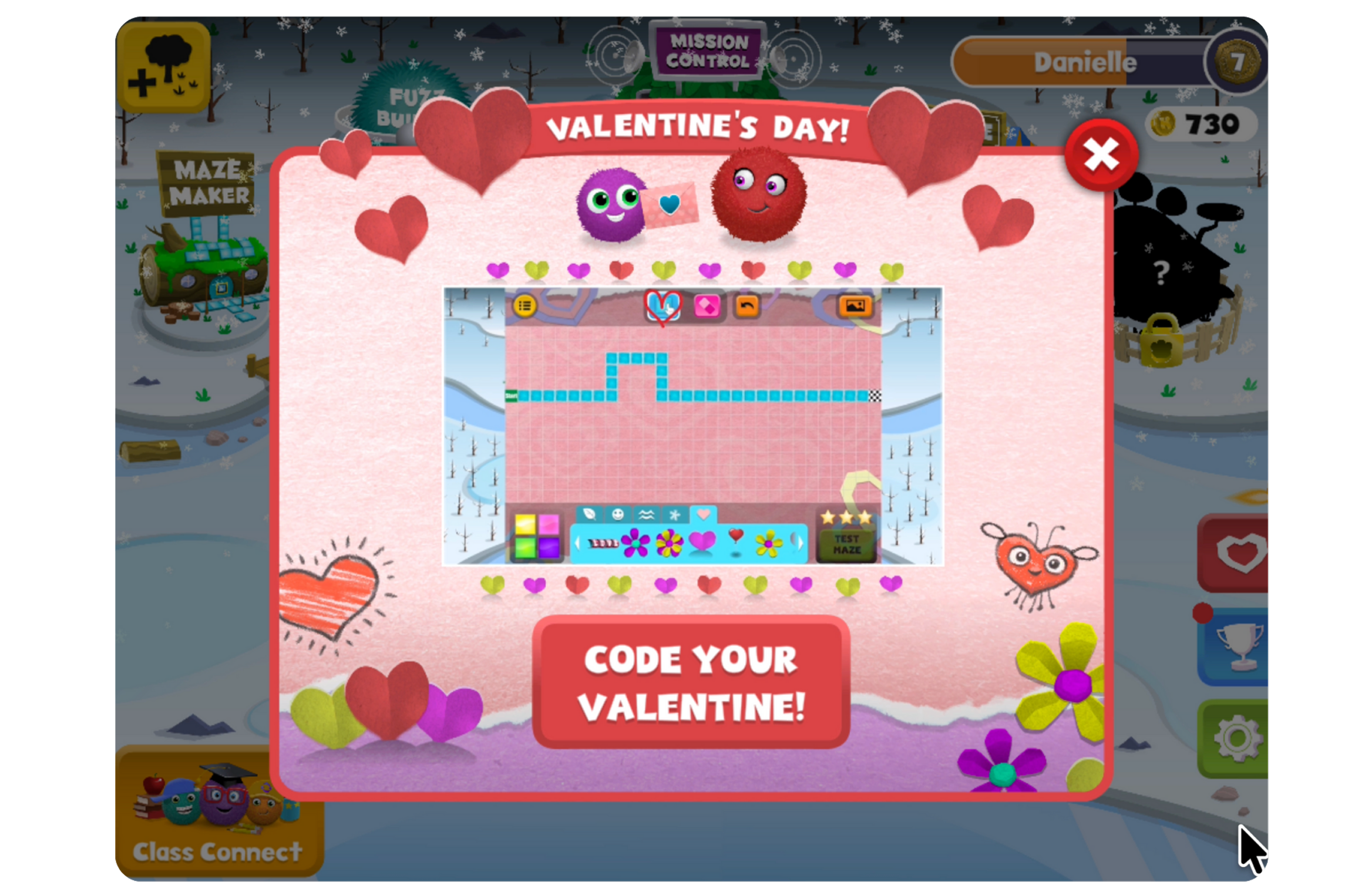
During the in-game event, each student can create four custom Valentine-themed mazes. Using the in-game drawing tools, students design a maze that starts on the left side of the grid and connects to the end tile on the right.
%201.png)
After completing one maze in the event, students will unlock six Valentine-themed costumes and accessories. They can then visit Fuzz Builder to code and customize new Fuzzes!
%20copy%201.png)
Sending Home the Virtual Valentines
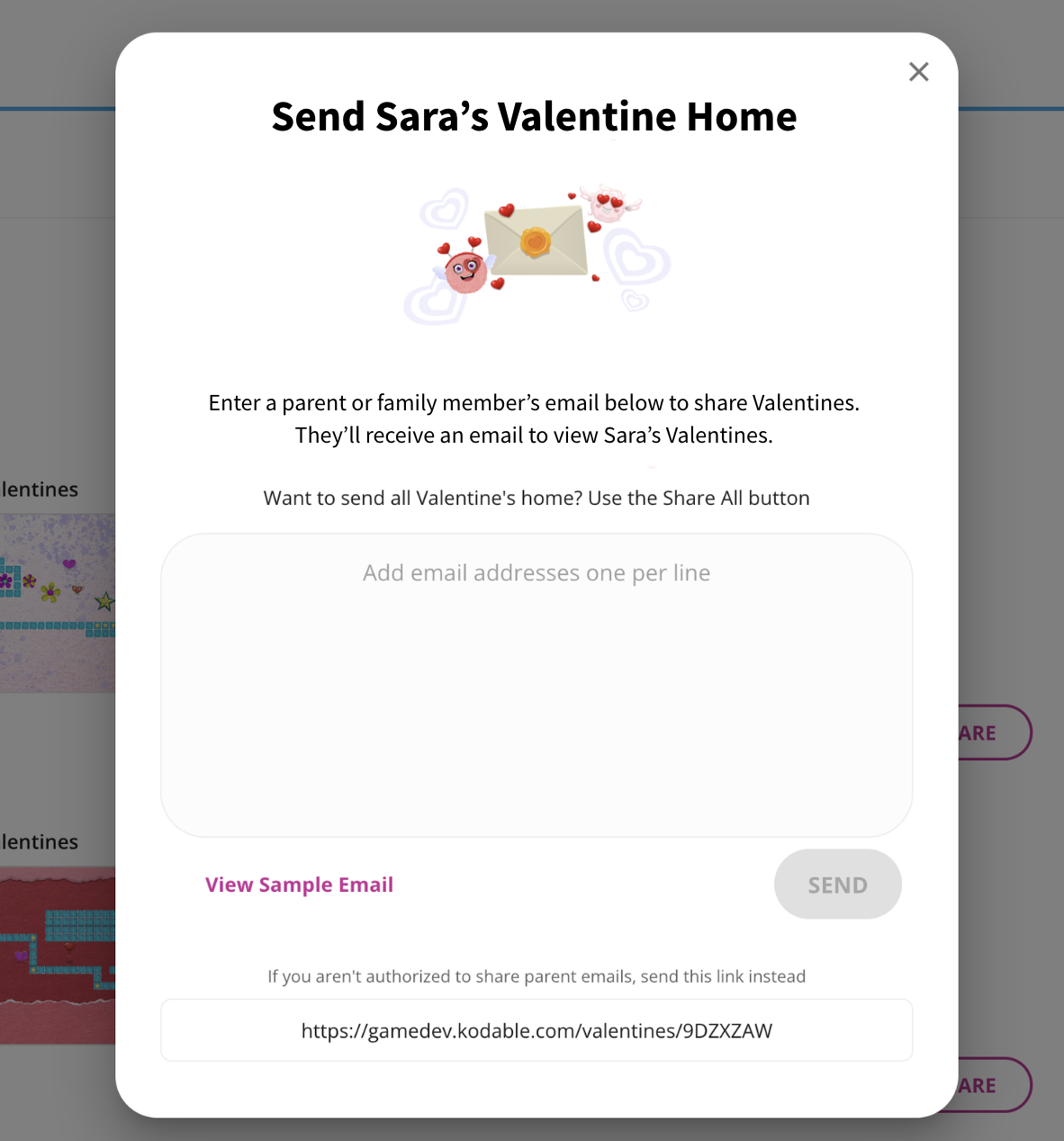
Once students finish, you can log into your teacher dashboard to share their creations with families. You can either send the whole class at once or share them one student at a time.
Families can view and print the Valentine for free.
To play the Valentine, families can start a 7-day free trial of Kodable.
Schools using an All Access plan include family access, so no trial is required.
%20copy%202%201.png)
Whole-Class Sharing: Families will see the class Valentine collection and can click their child’s name to view.
- From your teacher dashboard, click Student Valentines (left menu).
- Select Share All Valentines.
- Choose how to share:
- Email: Paste parent/guardian emails into the email recipient box and click Send.
- Link: Click Copy Link and share it via email or newsletter.
%20copy%203%201.png)
Individual Student Sharing: Families will see only the Valentines created by their child.
- From your teacher dashboard, click Student Valentines (left menu).
- Click on a specific student’s Valentine.
- Choose how to share:
- Email: Paste parent/guardian emails into the email recipient box and click Send.
- Link: Click Copy Link and share it directly with that student’s family.